How do I get more years included in the projections for an SOA?
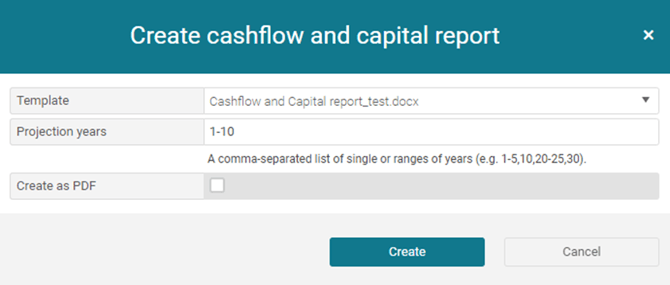
The Midwinter SOA template provides the Cashflow and Capital outputs for years 1-5, 10 and 20 as default.
If you require additional years, please generate the Cashflow and Capital report and specify the projection years required. See example of format below.
How do I reset my Cashflow & Capital modelling?
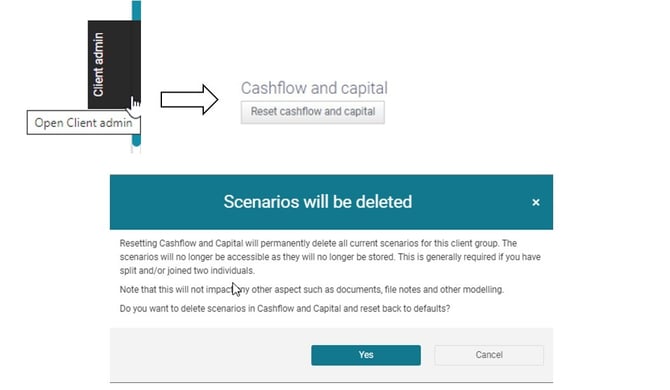
To reset your C&C modelling, you need to navigate to client > fact find > personal details and open up the Client Admin button on the right of the screen. Here you have the option to reset C&C. Please take note of the warning prior to deleting your C&C modelling, as this process will permanently delete all existing scenarios.
Update from Fact Find (Including Deleted Liabilities and Investments)
When working in Cashflow and Capital, each scenario is automatically pre-filled using data from the client’s Fact Find.
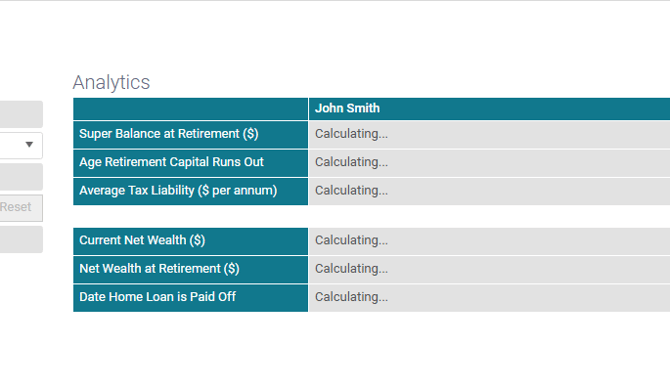
If changes are made to the client's information during this process, you may experience issues where the scenario data or analytics do not load correctly.
How to Resolve the Issue
To correct this, you can manually refresh your scenario using the latest Fact Find data, including any items that were deleted (such as investments or liabilities).
Follow these steps:
- On the settings page click the More Options icon on the left side.
- From the menu, select Update from Fact Find.
- In the Import Manager window, scroll to the bottom.
- Ensure the last two options are ticked (these options include deleted items).
- Click OK to apply the update.
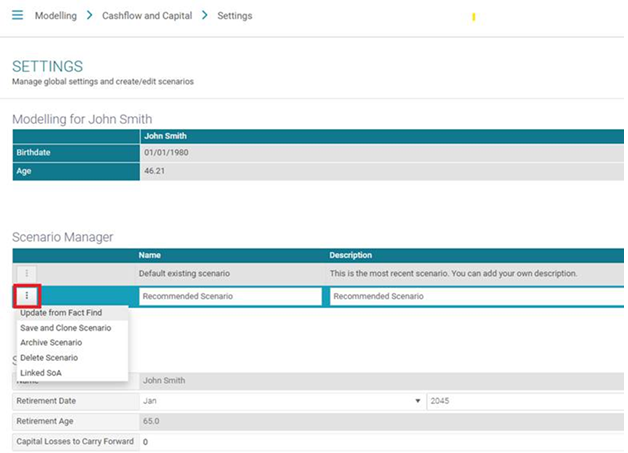
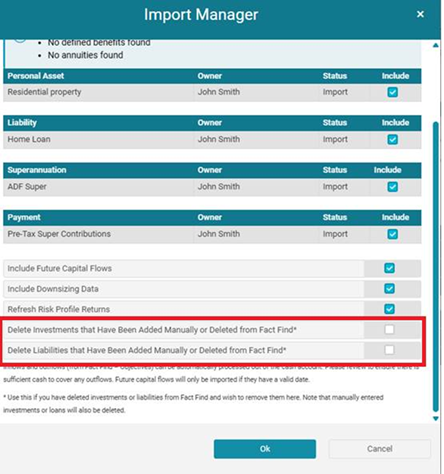
This will refresh your scenario and ensure that any manually added or removed items are properly accounted for, preventing calculation errors.
If the problem continues after updating the scenario, please contact our Support team for further assistance.
How do I make contributions past my client’s retirement date?
The modelling assumes the client stops work at their retirement date and is no longer receiving employer contributions. Therefore, the accumulation account by default is no longer active and the full balance is rolled over to commence a pension at retirement date.
However, you can still make transactions in the client’s super (accumulation) account past the retirement date, without changing the retirement date.
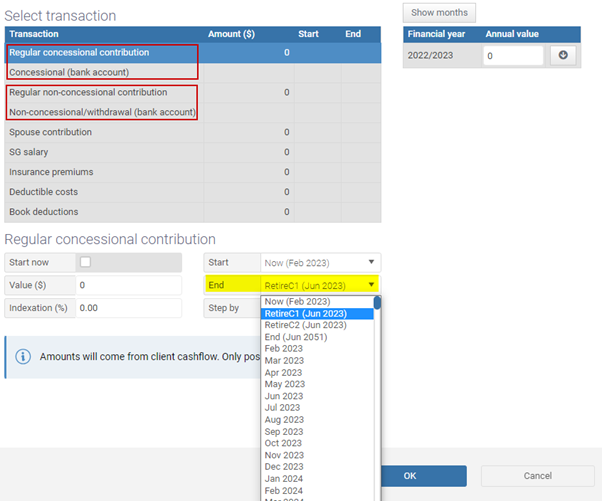
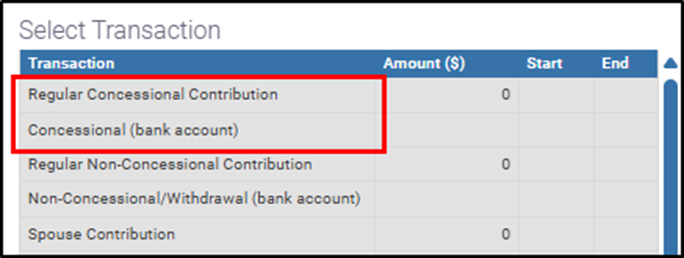
To make concessional contributions past the client’s retirement date, click Transactions then select ‘Regular concessional contribution’. Change the ‘End’ date to the later date as required. Once this later date has been selected, it will flow through to ‘Concessional (bank account).
Similarly, to make a non-concessional contribution or withdrawal, select ‘Regular non-concessional contribution’ and change the ‘End’ date to a later date as required. This will enable transactions for both ‘Regular non-concessional contribution’ and ‘Non-concessional/withdrawal (bank account) up to the selected ‘End’ date.
My client is being charged the Medicare Levy Surcharge incorrectly as they have private health insurance in place. How do I turn this off?
To remove the Medicare Levy Surcharge (MLS) you need to navigate to Fact find > Personal details and tick on that your client has active private health insurance. This will correctly adjust the tax calculations for your client.

Contributions
Why are my client’s employer contributions not in line with the legislated minimum?
The rates used in the scenario are current at the time the scenario was created.
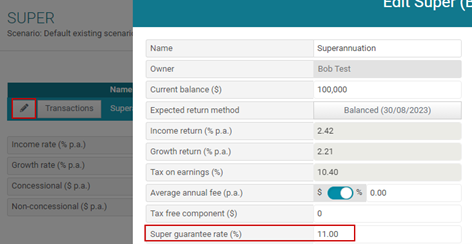
So if you are using a previously created scenario where the rates are set for the previous financial year, you will need to update the rate manually. To do this, click the edit button in superannuation (for each client) and change the super guarantee rate.
Why is the Government co-contribution not showing?
The minimum contribution of $1,000 must be entered as a non-concessional contribution.
The client must also be eligible to receive the government co-contribution. To demonstrate eligibility, the client’s superannuation account must receive Super Guarantee contributions.
If your client is self-employed, you can set the SG Salary to Manual (edit super) and add super salary manually via Transactions.
Why are the contributions highlighted in yellow or red?
If the contribution cell is highlighted yellow, this indicates you are nearing the full contribution cap. If the contribution cell is red, this indicates the contributions cap was breached.
To limit contributions to the respective contribution caps and prevent any breach of the concessional contribution caps, you can select these settings via the edit button in super.

Please note the output for the current financial year is shown on a pro-rata basis.
The available concessional cap is shown for full financial year but does not reflect SG made year to date so actual available concessional may be less.
How are Division 293 tax calculated and disclosed in the modelling?
Generally, Division 293 tax is deducted from the client’s superannuation balance as additional contributions tax. For clients with high income, the effective contributions tax rate may increase to 30% instead of the standard 15%.
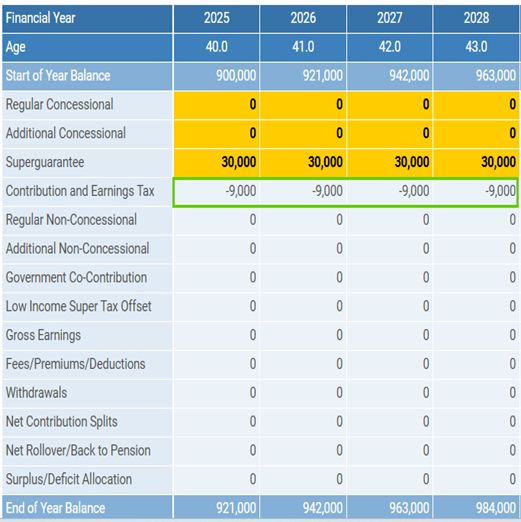
In most cases, this tax is paid directly from the client’s super balance. However, the Division 293 tax row will only appear in the cashflow if there is a year when the super balance is $0 at the end of the year (typically when a full rollover occurs during that year). In this situation, the client has triggered Division 293 tax but cannot pay it from their Super, so it is treated as a personal expense in cashflow.
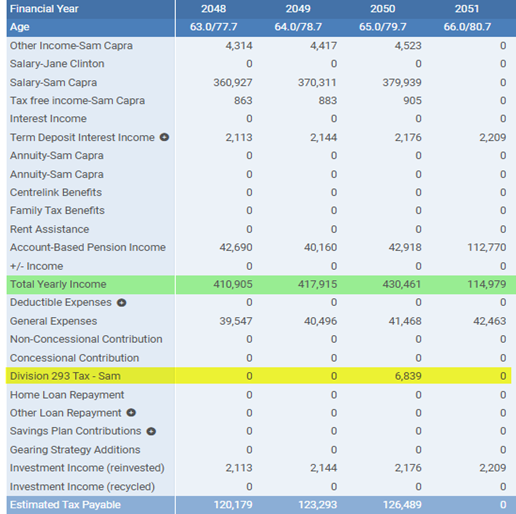
By default, AOS assumes the additional Division 293 tax is paid by the client’s Super. The cashflow line item will only populate if the client does not have sufficient Super to cover the tax.
How are gross earnings calculated in the Cashflow and Capital super projections?
Gross earnings are calculated using a combination of income and growth assumptions, applied on a monthly basis.
How the calculation works:
- The annual income and growth rates are converted into effective monthly rates.
- Monthly income earnings are calculated by applying the monthly income rate to the opening balance for the month.
- Monthly growth earnings are calculated by applying the monthly growth rate to the opening balance for the month.
- Monthly Super Guarantee (SG) contributions are calculated as the annual SG amount divided by 12.
Tax treatment:
- Income earnings tax is calculated as (monthly income earnings − deductible costs) × super tax rate × (1 − unfunded earnings tax percentage)
- Growth earnings tax is calculated as monthly growth earnings × super tax rate × (1 − unfunded earnings tax percentage)
- Contributions tax is typically 15% of SG contributions.
Sample Scenario - High Growth Client
Super balance $120,000
Salary $100,000
Super Guarantee Contribution $12,000
Income rate 2.55%
Growth rate 3.41%
Tax 8.41%
- Monthly income rate ≈ 0.21%
→ Monthly income earnings = $120,000 × 0.0021 ≈ $252 - Monthly growth rate ≈ 0.28%
→ Monthly growth earnings = $120,000 × 0.0028 ≈ $336 - Total gross earnings for the month ≈ $588
- If SG is based on a $100,000 salary (assuming 12% SG):
→ Annual SG = $12,000 → Monthly SG ≈ $1000
→ Contributions tax (15%) ≈ $150 - Example tax on earnings (simplified, no deductions):
→ Income tax = $252 × 8.41% ≈ $21
→ Growth tax = $336 × 8.41% ≈ $28
This results in net earnings after tax, with contributions and taxes applied monthly.
Why might there be a discrepancy between Centrelink calculation and my calculations in the first year of eligibility?
For the assets test, balances are assessed as at the start of the financial year, while the income test is based on annual income. As a result, if a client becomes eligible partway through the year, the initial Centrelink calculation may not fully reflect their actual entitlement.
To address this, the system includes an “Override Pension” feature, allowing advisers to manually input the pension amount the client is actually receiving for more accurate modelling.
How do I add a one-off income or expense?
To add the one- off income and expense, simply add the income/ expense and set the period to a single year (for example, "2026 to 2026” or your preferred year). This will ensure the amount is applied only once within that specific time frame.
How to I sell off or buy more of one asset?
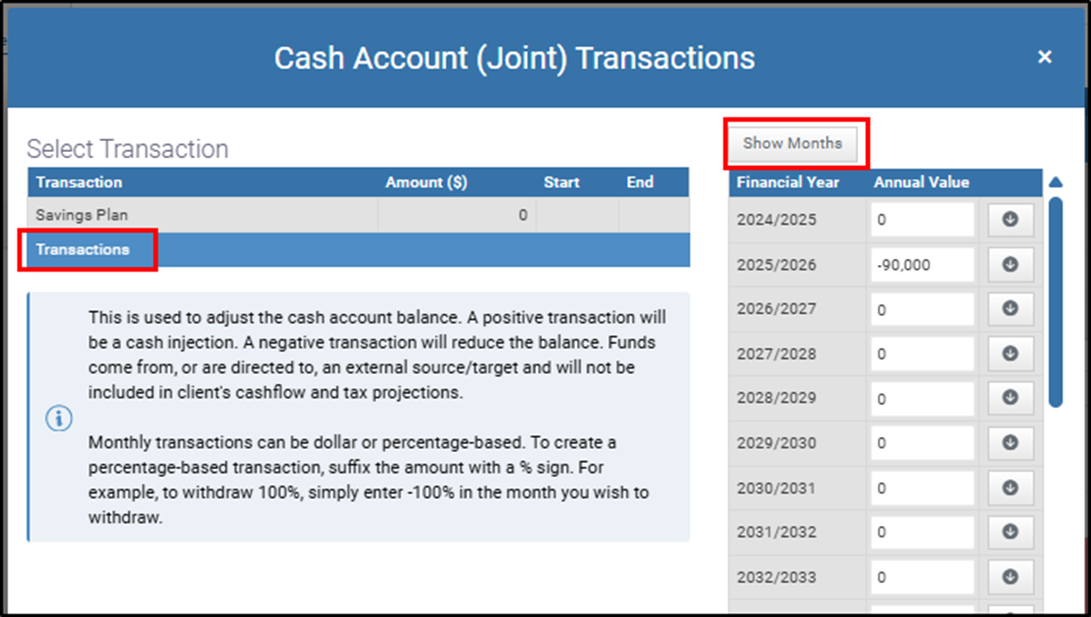
To buy more of an asset or sell part of it, navigate to the Transactions section and then 'Show months' and then enter the amount for the relevant month- use a positive figure to purchase additional units and a negative figure to sell down. Selecting a specific month ensures the transaction is applied at a single point in time, rather than being spread (pro- rated) across the entire year.
Please note: it's important to select 'Transactions' as the entry type. Adding the amount under the Savings Plan instead may lead to inaccurate modelling.
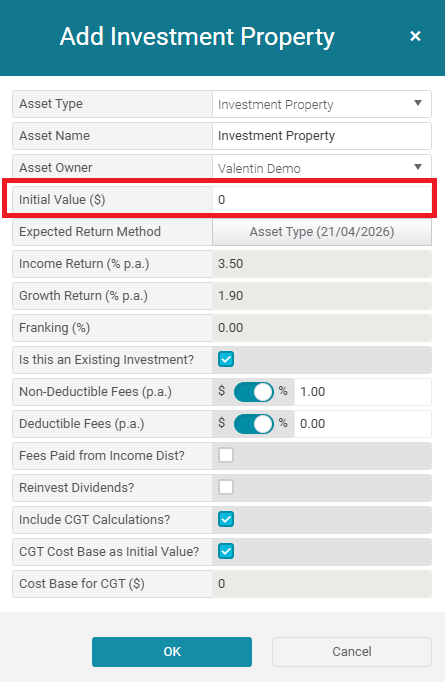
How can I show a purchase of an asset in the future?
Add the asset but ensure that the initial value is 0. Then go into the transactions and put in a positive number in the month of the asset being bought.
I don’t want to use the income and growth returns for the client’s risk profile, what can I do?
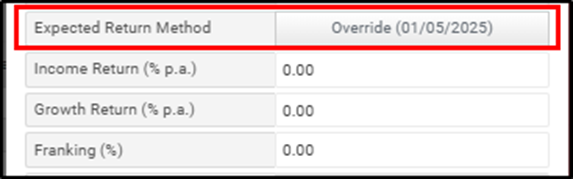
Change the expected return method for the asset/ investment to override by navigating to the Edit button.
How to pay off a loan in full or partially?
To pay off a loan either partially or in full, navigate to the Transactions section of the loan. Since loans are treated as the opposite of assets, entering a positive amount will reduce (pay down) the loan, while a negative amount will increase the loan balance.
How to a link an offset account to my home/investment loan?
In edit, tick “use offset account”. However, you will need a separate cash account in assets to link to each loan. The core cash account can only be used as an offset account for the home loan. For investment loans, you will need to go into assets and create additional cash accounts.
Is there a way for me to contribute to the cap every year?
Yes, make sure in edit that you ticked “Use cap”. And then, go to transactions > regular concessional contribution, and put in a large number. The system will then automatically calculate how much to contribute to reach the cap. Note: this only works for regular concessional contribution and not for concessional contribution from bank account – this is by design.
How do I withdraw money from superannuation?
A negative transaction in “non-concessional/withdrawal” will allow the user to withdraw funds from Super.
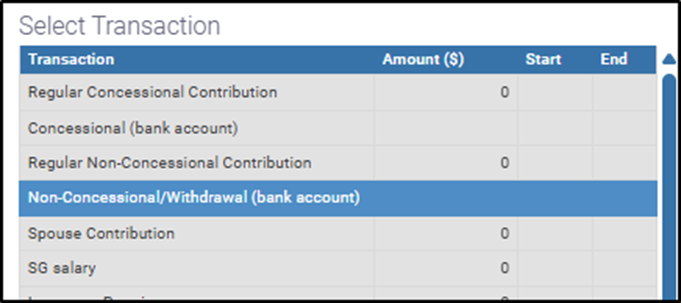
What is the difference between regular concessional contribution and concessional (bank account)?
Regular comes from cashflow whereas concessional (bank account) comes from the client’s cash account. Usually, it will be regular, but some self-employed people who pay their own SG may use concessional (bank account).
I made a non-concessional/concessional contribution right before rolling over, but that amount is not rolling over?
Please ensure that the rollover is processed at least one month after the non-concessional contribution. As a general guideline, the system performs optimally when the transactions are scheduled in separate months, allowing at least a one-month interval between them for smoother processing.
What is overflow in surplus/ deficit used for?
The surplus or deficit will be allocated to the overflow after you initial selection has run out. For deficits, this means that if your initial selection runs out of money, it will continue to draw from the overflow. For surplus, it will allocate but if a loan has been paid off, it will go to the overflow.
Entities
How do I add a company/SMSF/Trust in my scenario?
(i) Existing entity
In the Settings page, under the Settings heading, click Included entities.
This will bring up a list of entities entered in the Fact Find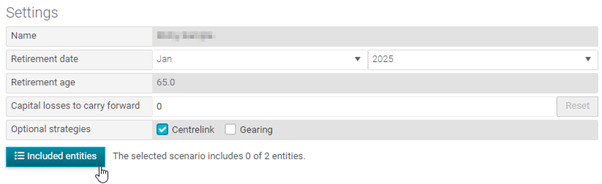
(ii) Entity for modelling purposes only
- Navigate to Main Menu>Modelling>Cashflow & Capital>Settings.
- In the General settings section, click Manage entities.
- Click +Add – Company, Self-Managed Super Fund or Trust.
- Enter name and risk profile, if known. Click Save.
- Click Included entities button located in the Settings section.
Note: entities not saved in the Client Fact Find and created in Cashflow and Capital will appear with (modelling) in the name.
Tick entities to be included then OK.
How do I change who the company dividend or trust distribution is paid to?
Company
Select “Companies” in the left-hand side menu. Under shareholders, you can amend the interest (%) for each shareholder(s).
To amend their interest in future years, select the 3 dots and amend accordingly.

Trust
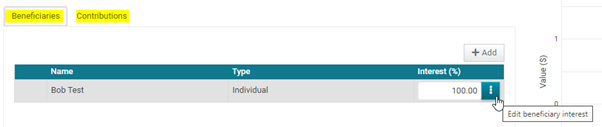
Select “Trust” in the left-hand side menu. There are two tabs; beneficiaries and contributions. In each tab you can amend the interest (%).
To amend their interest in future years, select the 3 dots and amend accordingly.