
This module allows you to compare, review insurance products and provide insurance recommendations to your clients.
Fully integrated into AdviceOS, Insurance Comparison uses the data from the fact find and lets you select your desired cover and scoring to run a tailored insurance analysis for your client.
Using the robust Omnium API, insurance comparison will search more than 90 insurance providers to find options that match your cover criteria.
The visual insurance comparisons interface provides an easy way to run a like-for-like comparison across key criteria and provides a visual score for each policy against the stated client requirements. If you need more details on a policy, the full PDS, a detailed feature analysis and policy definitions; these are all available through Omnium.
After you have selected the preferred insurance product, you can validate that the quote is correct (although some providers do not make premium validation and application integration available). If the client decides to go ahead with your advice, the Omnium module integrates directly with the insurance providers quote generation system so you can easily complete the purchase and avoid double entry.
Insurance Comparison integrates with the Insurance Needs Analysis module so you can pull through any recommended and alternative products and easily generate your SOA.
The AdviceOS Insurance Comparison (Omnium) is an integration between Omnilife and AdviceOS. This means the Insurance Comparison (Omnium) uses the Omnium insurance research as well as several features which advisers can use to search, select and compare policies for their client. Some of the features are:
Premium validation from suppliers (where available)
- Quote transfer
- Saving an existing platform to Fact Find
- Multi-select option to allow the users to do the comparison for multiple values.
- Preset cover setting.
- Feature scores.
- Graphical representation of the product comparison (e.g. premium basis, cumulative charts).
Adding Existing Insurances in the Fact Find
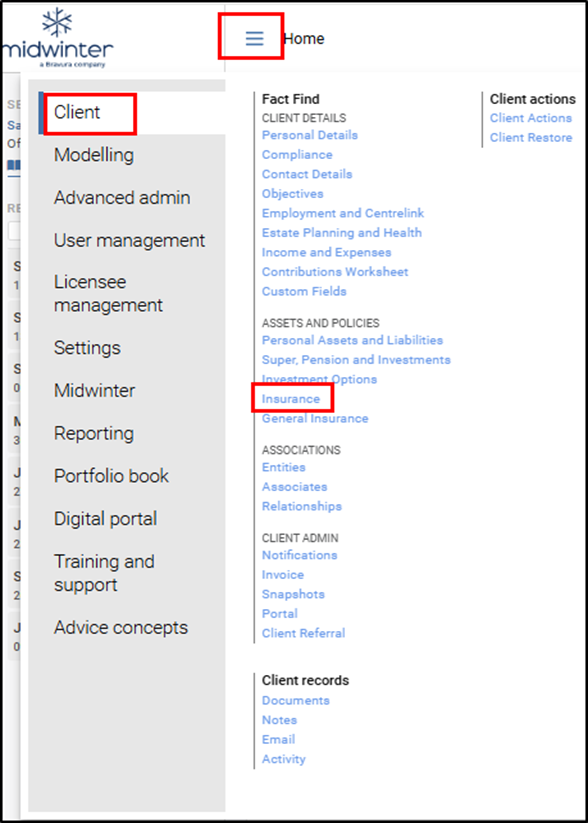
Navigate to the Insurance section of the Fact Find and enter the insurance details for your client.
Users can add a retail, super, group policy by clicking on the +Add button and filter by their status.
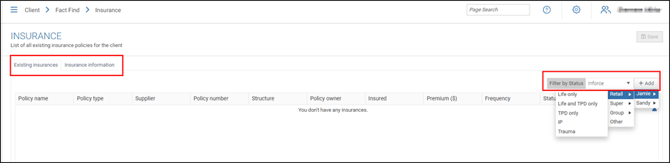
Follow the steps below to ensure that details relating to features and fees for existing insurance products are accurately carried through to Omnium for product comparison.
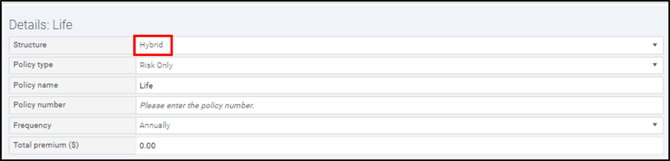
- Change the structure of the added insurance to ‘Hybrid’ in the Details section.
- Use the tick box to specify whether the insurance cover is held inside or outside super in the Cover details section.

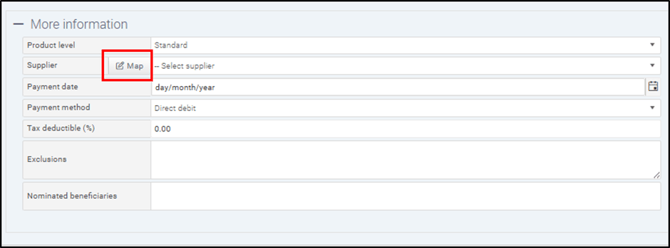
- Once the insurance covers are added, go to +More information section and use the ‘Map’ button to select the relevant supplier and press OK.
- Save the changes and then click the Map Omnium Product button to map client’s existing insurance policy to a product in Omnium.

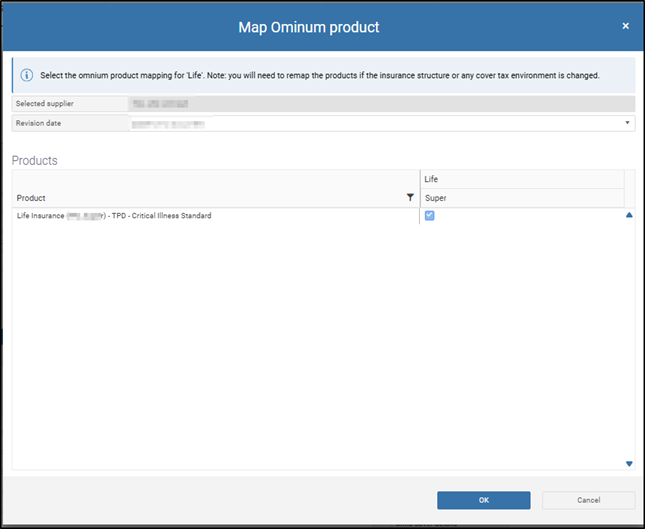
If you are not mapping the existing insurance to Omnium, the information will not be available in Omnium for a comparison with the recommended and alternative products in Insurance Comparison (Omnium)> Product Recommendations section.
Alternatively Users can also add client’s in-force (existing policy) from Omnium to the Fact Find by going to the Main Menu> Modelling> Insurance Comparison (Omnium). Add the cover using Add+ button.
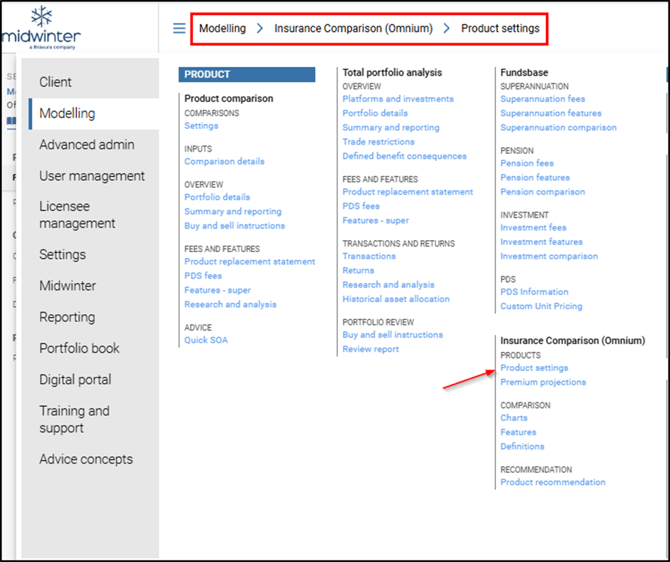
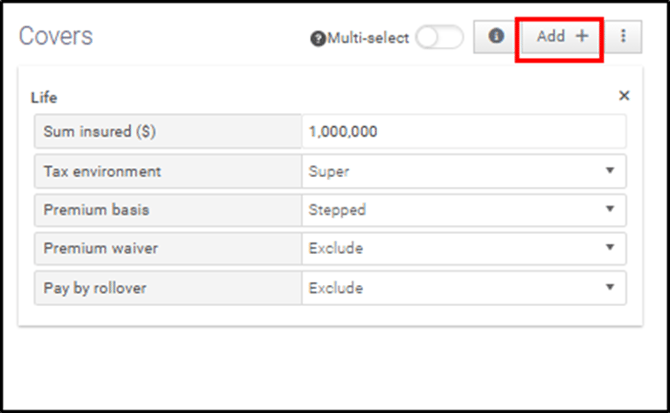
Select the supplier from the Supplier Management on top right,

and then use the ‘Save to Fact Find’ option from the menu to save the insurance back to Client Fact Find as an in-force client policy.

We’ll cover the details on how you can structure insurances and add platforms in more details in the later section of this article under Insurance Comparison in Omnium.
Needs Analysis
Once the information about client’s existing policy has been added, users can move to the Needs Analysis module to calculate appropriate levels of covers and make a recommendation for their clients. This will ensure that the recommendation and insurance comparison information will populate in the SOA.
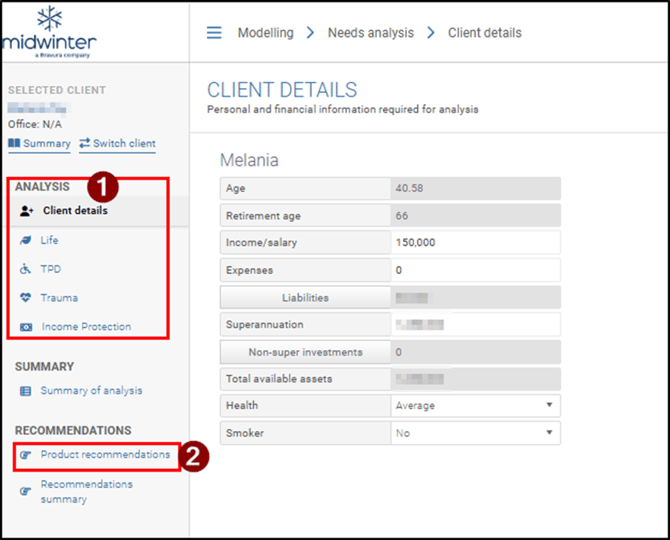
To access the needs analysis go to the Main Menu (1) > Modelling (2) > Needs Analysis (3):
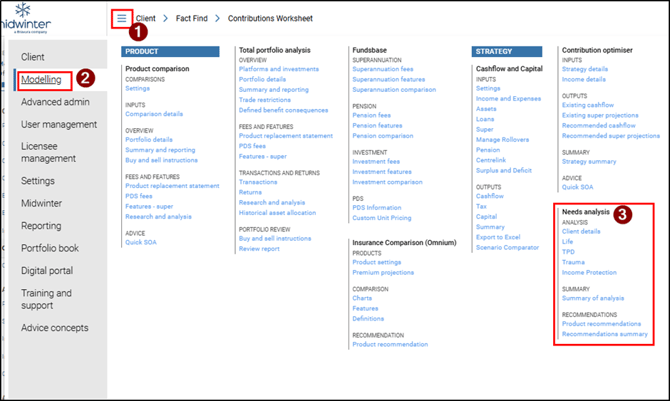
For more details on how to use the insurance cover calculators please refer to the Needs Analysis guide (Needs Analysis). If you do not need to use the calculators to determine insurance cover levels, simply move to the Recommendations> 'Product Recommendations' section of this module, tab (2):
In the Product Recommendations tab, you can use the View insurance by filter on top- right and view client’s existing policies by selecting the Status- Inforce filter from the drop-down menu.
To add a recommendation, select the Status- Recommended filter and click +Add, select the client and add the type of insurance from the dropdown menu:

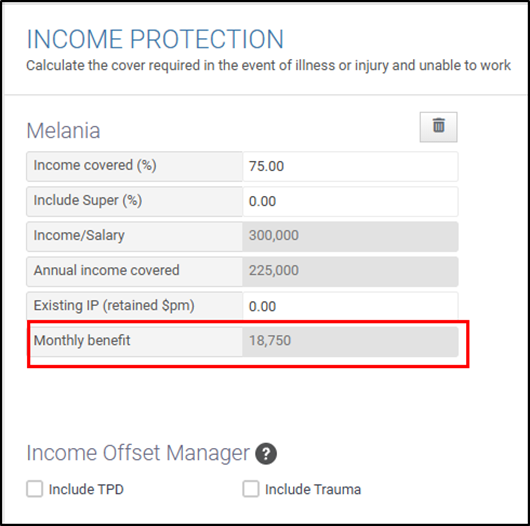
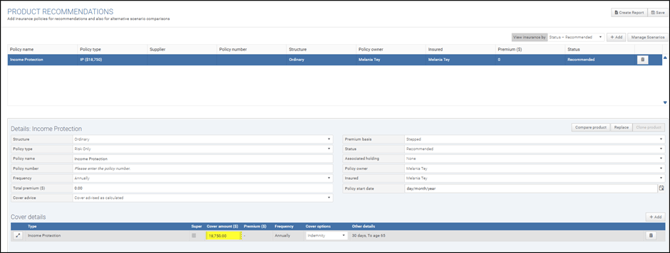
If you have used the needs analysis calculators, the cover amounts will automatically populate next to the cover types you used calculators for. For example if you used the Income Protection calculator and this was the end result (see below) the Income Protection cover you add as your recommendation will automatically populate with $18,750 as per the outcome below. You can of course edit this amount to match what you believe may be a more appropriate amount for your recommendation.
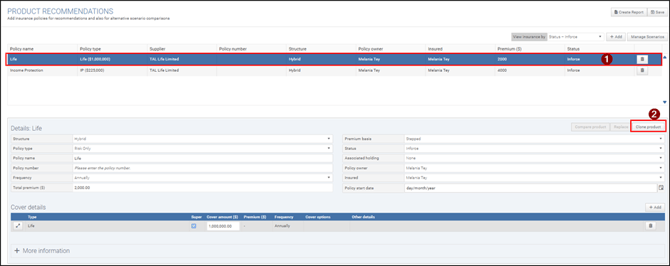
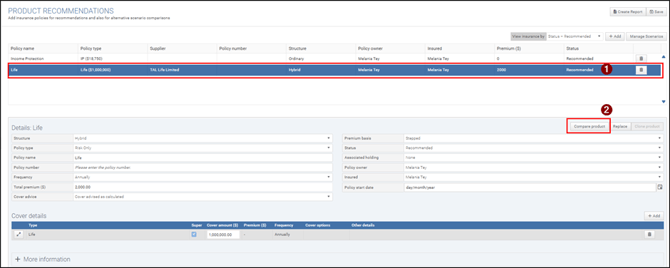
Alternatively, if your client has an existing (in-force) policy in place you also have the option to Clone the product and make slight adjustments. This option will clone the existing policy and convert the status to recommended and you can adjust the cover information to reflect the recommendation. To do this select the in-force policy (1), then select 'Clone Product' (2):
Once you have added your recommendation and selected recommended in Needs Analysis, click on 'Compare Product' to be redirected to the Insurance Comparison (Omnium) module for platform comparison:
Insurance Comparison in Omnium
Product Settings
Once you have added your recommendation through Needs analysis and selected Compare Product, you will be redirected to Insurance Comparison (Omnium) > Product Settings. The information that you added for the recommended covers will flow through from the Needs analysis and appear on the left under the Covers section:
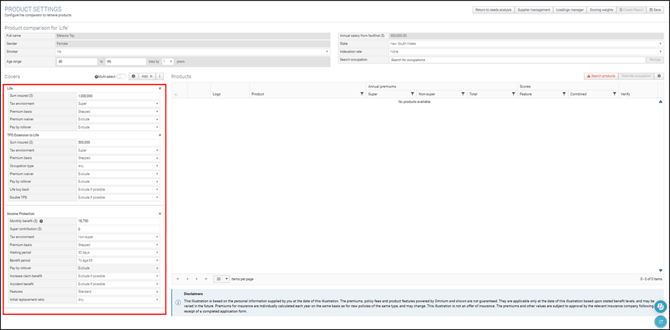
The top section of the Product Settings page displays the information previously entered in the Fact Find. You can review and update these details at any time using the dropdown menus.

If the client’s occupation hasn’t been added, simply use the “Search Occupation” field to find and select the appropriate option from the dropdown menu.

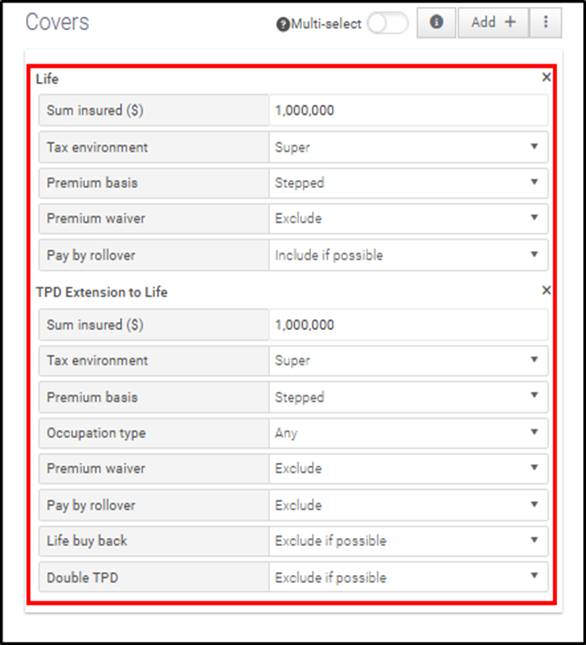
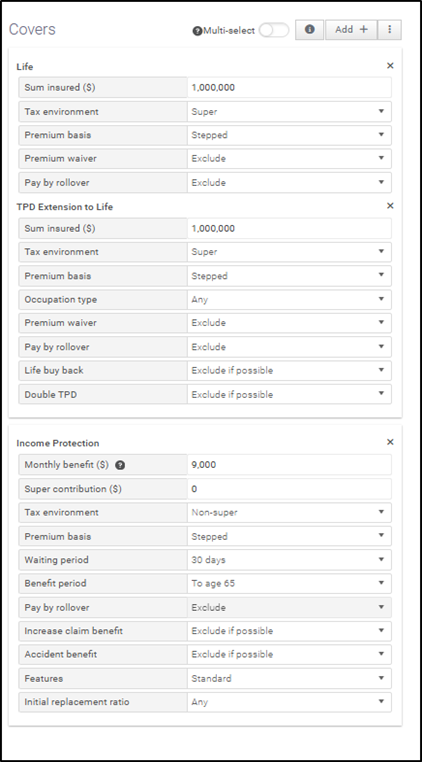
Under the Covers section on the left- hand side, you can enter key details about each cover type, such as cover amount, tax environment, premium basis, premium waiver, and pay by rollover. These selections are used to refine and filter the search results.
In this section, Users can also add new insurance options by using the +Add button and choosing the relevant cover type from the drop-down menu.
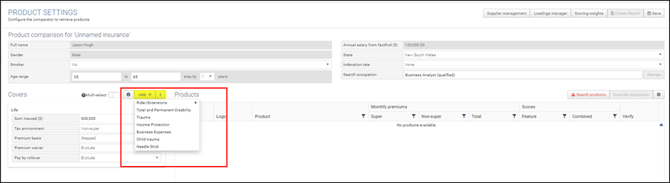
Tip: To include extensions for Life Cover, you must first add your Life Cover. Then, click “+Add” again and select “Rider/Extensions” from the dropdown menu.
In this section you’ll also find the Multi-select toggle:
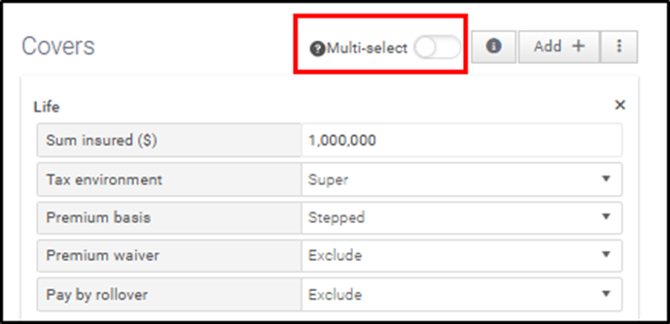
Multi- select feature allows you to search and do comparison across multiple criteria. When the toggle is enabled, you will notice that each insurance cover feature will allow you to select more than one option:
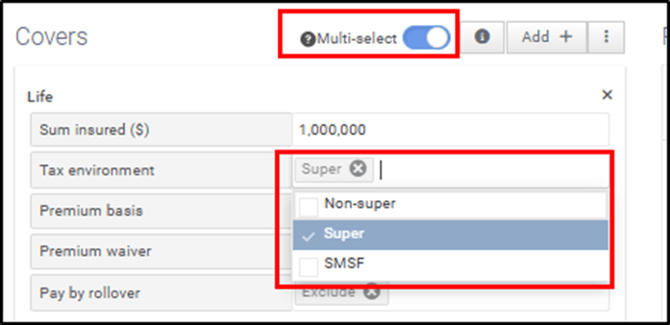
This functionality allows you to bring through more policies because it allows you to cover more features- in turn ensuring that you can select the policy that best suits your client.
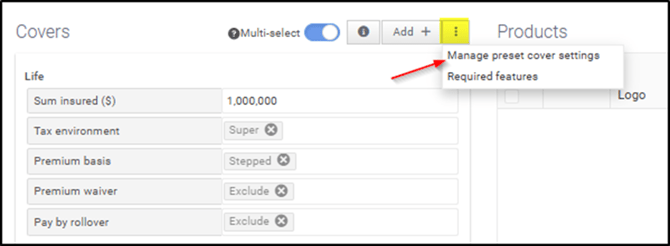
You can also preset cover selections, allowing the cover settings you configure to be saved and automatically applied for all clients when you access Omnium. To set this up, click the three vertical dots and select “Manage Preset Cover Settings.”
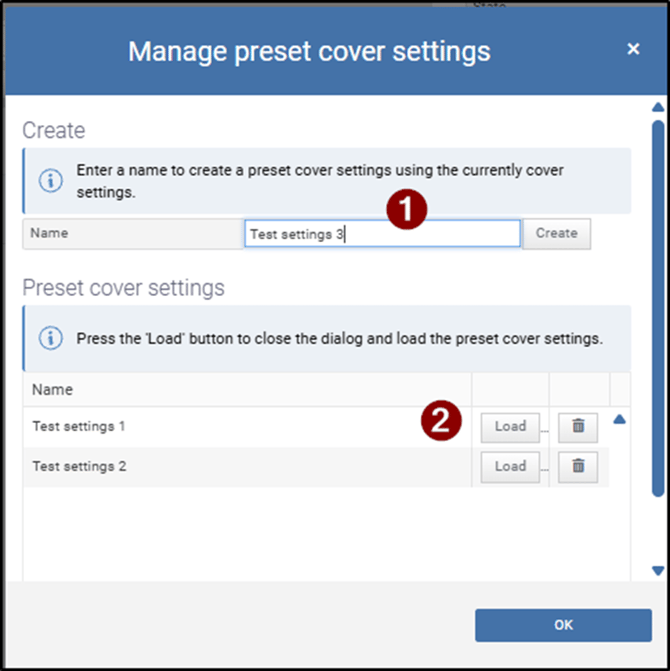
Then you will name the preset cover settings (1). To load it for other clients you will click on 'Manage Cover Settings' again and this time load the cover settings that is appropriate for your client (2):
After adding or editing the cover details, you’ll see several buttons in the top-right corner of the page, each providing different functions for users.
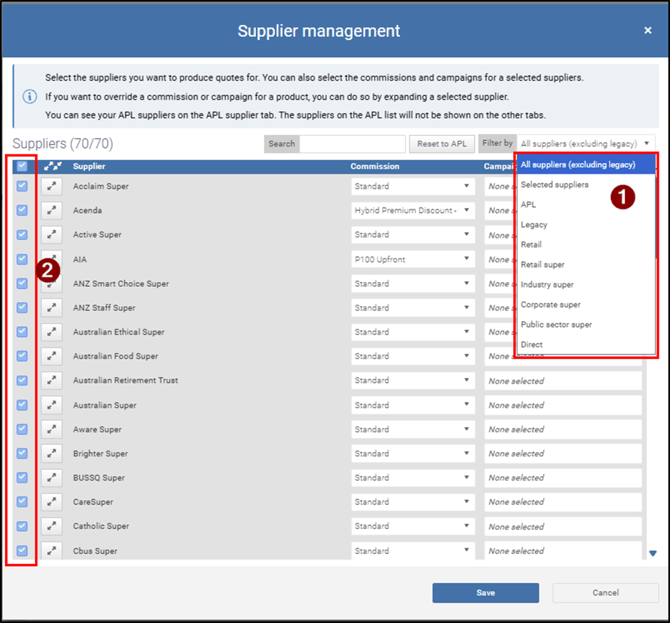
Select Supplier Management from this area to choose the policy providers you’d like to include in your comparison.
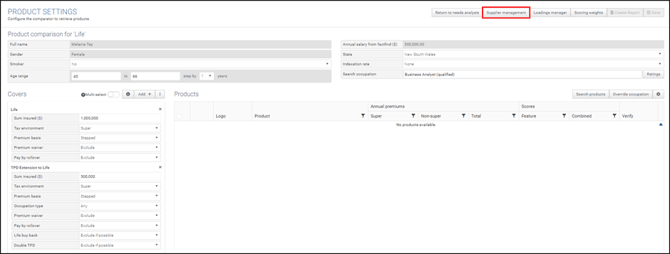
The policies that appear when you click Search products to do the comparison are based on what is selected within Supplier Management.
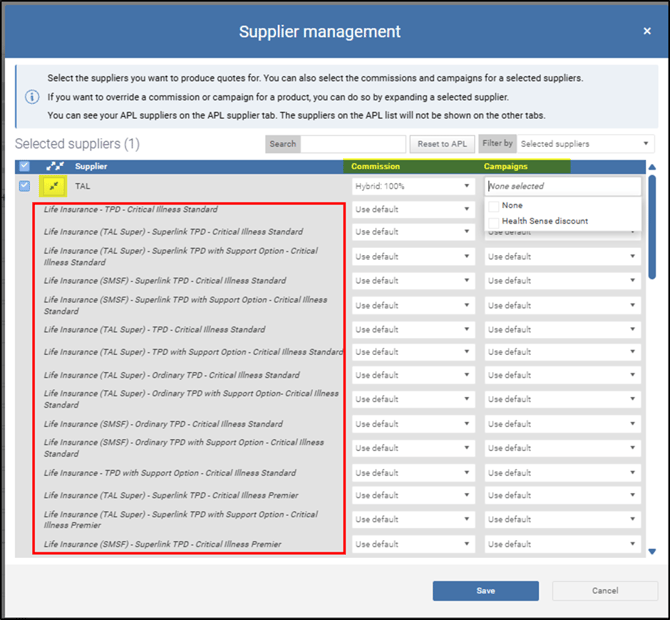
To see which products are available in Omnium for a specific supplier, click the arrows to expand the list. You can also view and select the applicable commission and any available campaigns for that supplier within Omnium in this section and press Save to exit the window.
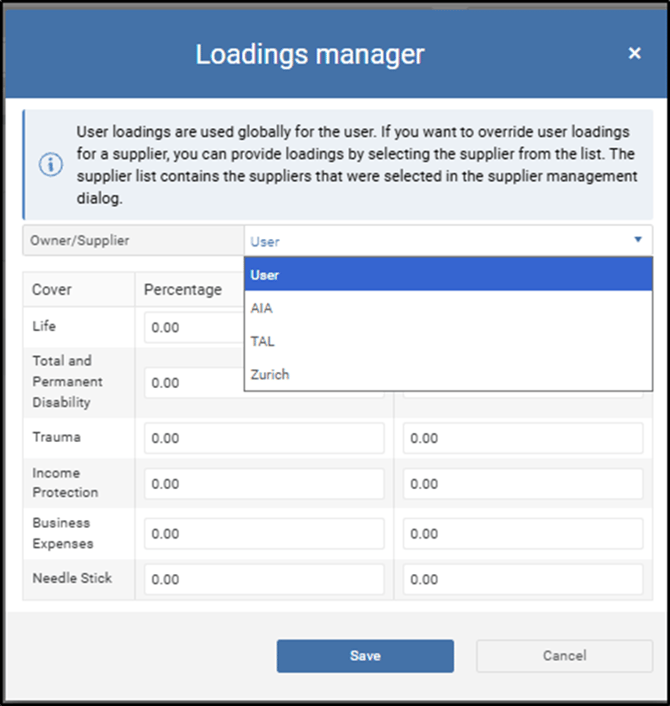
You also have the option to add loadings via the 'Loadings manager':
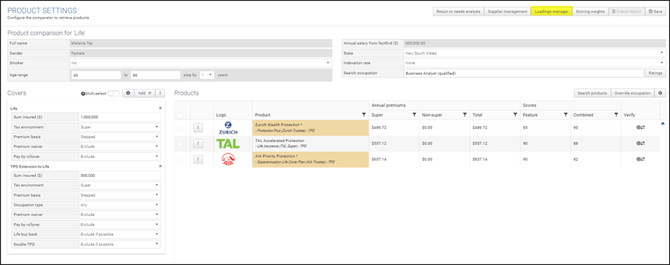
This will allow you to apply a loading across one provider or all providers.
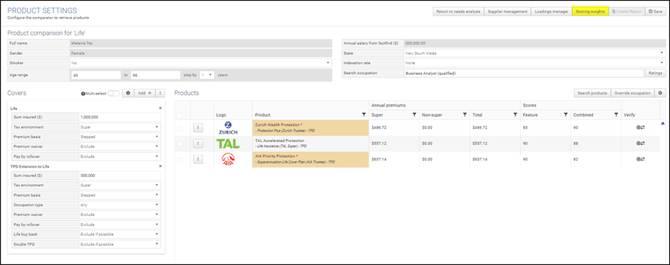
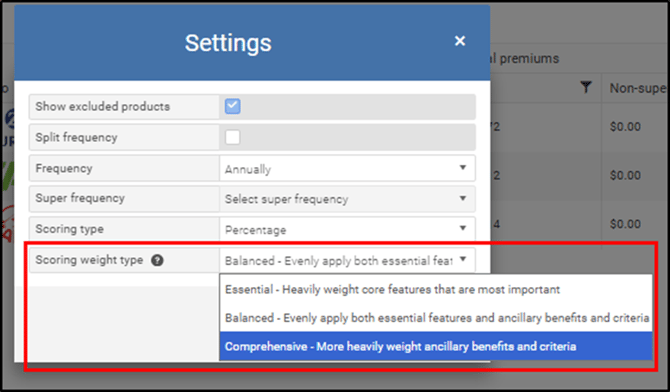
There is also the Scoring weights tab that allows the users to change how the combined score (combination of the premium and the feature) is calculated. In other words it allows you to prioritize premiums over features or vice versa.
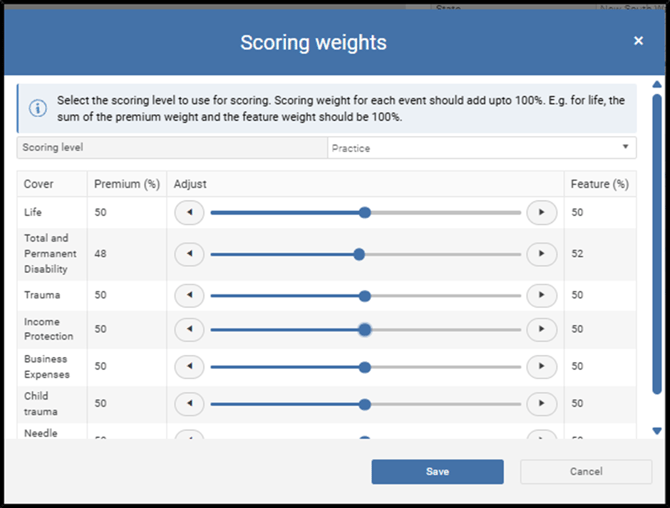
Furthermore, you can update our scoring type and scorings weights again in the Settings wheel tab on the top right-hand side of the Products section:
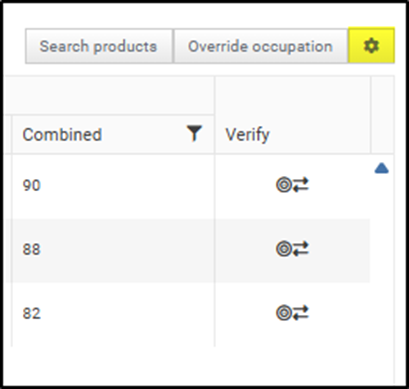
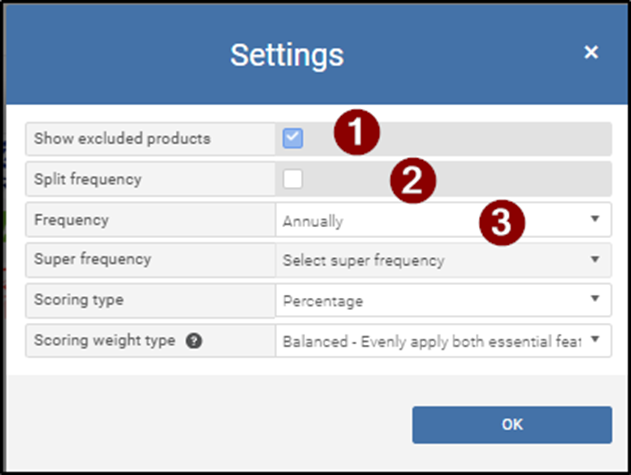
In the Settings wheel tab, you can tell the system to not show excluded products (1), Split frequency between super and non- super products (2) and change the frequency of the premiums (3):
Once you have selected the suppliers in Supplier management and press on Save, you will come back to the Product Settings page and will be able to view the suppliers and the insurance premiums in the Products section.
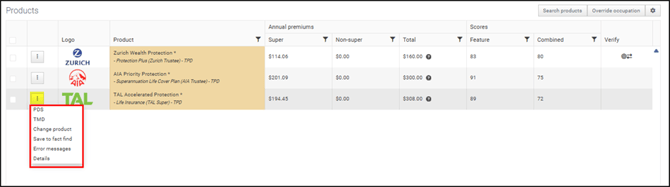
If you click on the three vertical dots for each supplier, you will be able to select the following functionality from the drop-down menu:
- PDS- Download the PDS of the supplier.
- TMD- Download the TMD (Target Market Determination) of the supplier. This will allow licensees, practices and users with the ability to collate and maintain TMD factsheets for every product they recommend (where available),
- Change Product- When a supplier is selected, Omnium automatically selects the most suitable product based on the client’s details and insurance structure entered in the Covers section. This option allows you to choose an alternative product from the same supplier, if required.
- Save to Fact Find- Save the selected product to Fact Find > Insurance as the client’s existing policy.
Tip: Using this option will not only save the product in the Fact Find but also in the Needs Analysis> Product Recommendations section as an inforce policy
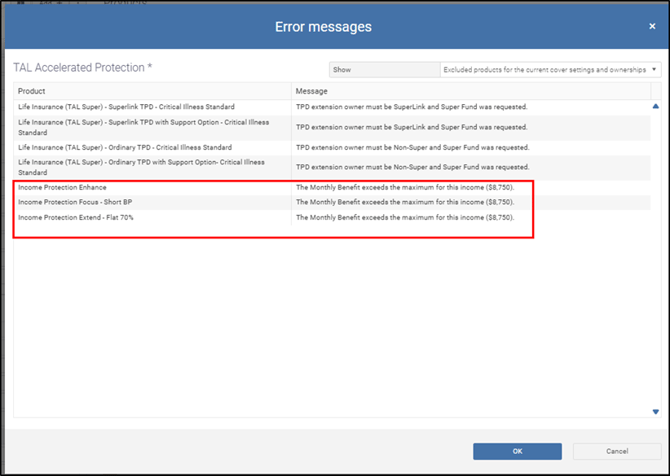
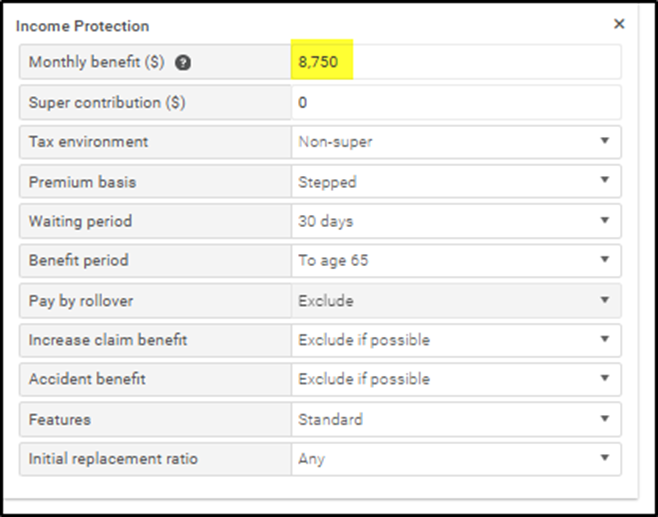
Example: You recommend that the client hold $1,000,000 in Life cover, a $1,000,000 TPD extension to Life inside super, and $9,000 per month in Income Protection outside super. After clicking Search Products, one of the suppliers displays premiums highlighted in red. Hovering over the highlighted premium reveals that the issue is related to the selected level of cover for Income Protection:

To view more details, click the three vertical dots and select Error Messages. In the pop-up window, you’ll see the maximum monthly benefit limits for the supplier’s Income Protection products available in Omnium. Once you adjust the monthly Income Protection benefit to within these limits, the premium will no longer be highlighted.

6. Details: View a detailed breakdown of premiums across the different covers.
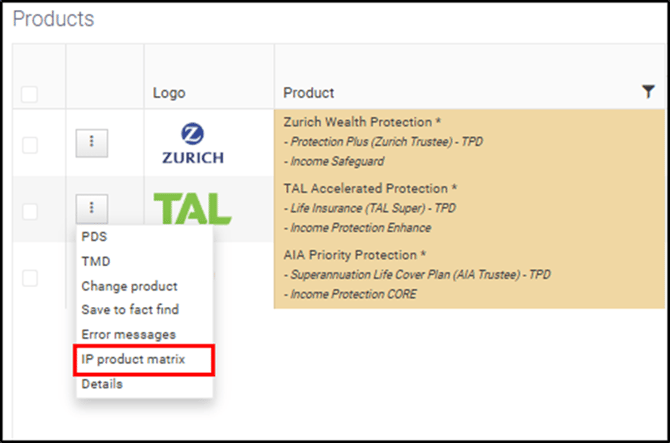
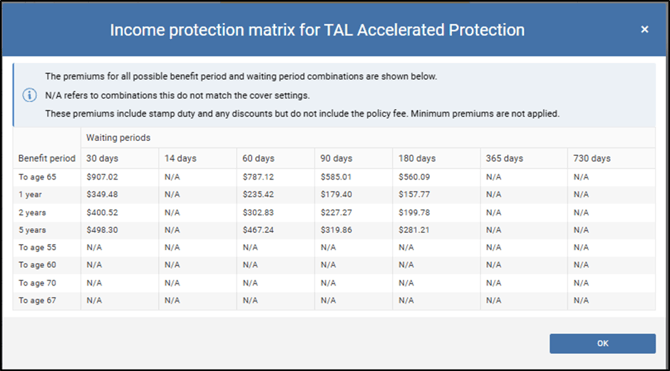
Additionally, if there is an income protection policy added under the covers section, you will also find the IP matrix option in this menu, which will show you the premiums for all possible benefit period and waiting period combination for that product.:
Some providers offer a premium validation feature, allowing you to verify the premium shown in the Insurance Comparison (Omnium) directly with the provider—see the Verify column.
Alternatively, you can select the transfer icon to send the client’s details to the provider’s own calculator to generate a quote. Depending on the provider, you may be required to log in to proceed.

- You can validate the quote by selecting this portion of the icon:

- Or you can transfer by selecting this portion of the icon:

By validating a quote- the premium that omnium calculates is sent to the provider who will subsequently confirm whether the premium is an accurate quote.
Transferring the quote- means omnium will take all of the search criteria for your covers and take it to the providers website (quote generator). Each provider has different quote generators, and some may ask for a login, for example:
Premium Projections
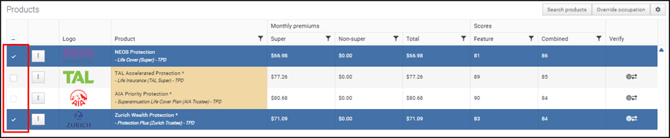
Before moving onto the next tabs in the Insurance Comparison (Omnium), ensure that you have selected the covers you wish to include in your comparison-
The Premium projection page will outline the premiums for the selected policy providers:
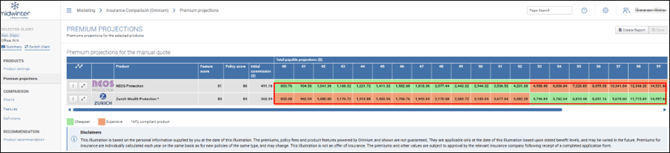
It will also show which policy provider offers the lowest cost, along with feature and policy scores. The policy highlighted in green is the cheapest, while those in orange are more expensive.
To view detailed premium information for each type of cover, click the expand button.

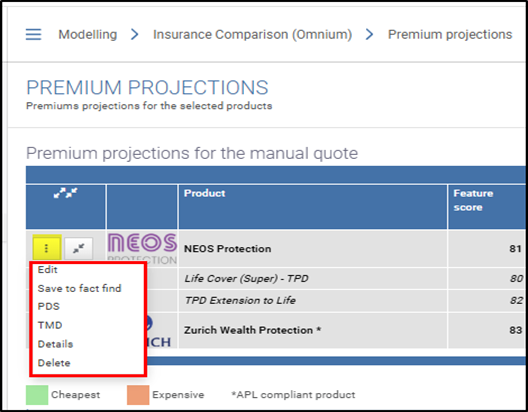
The actions button (3 vertical dots) provides a drop down where a user can delete the policy, view details, download the PDS, view TMD, save to Fact Find or edit the premiums that may not be accurate.
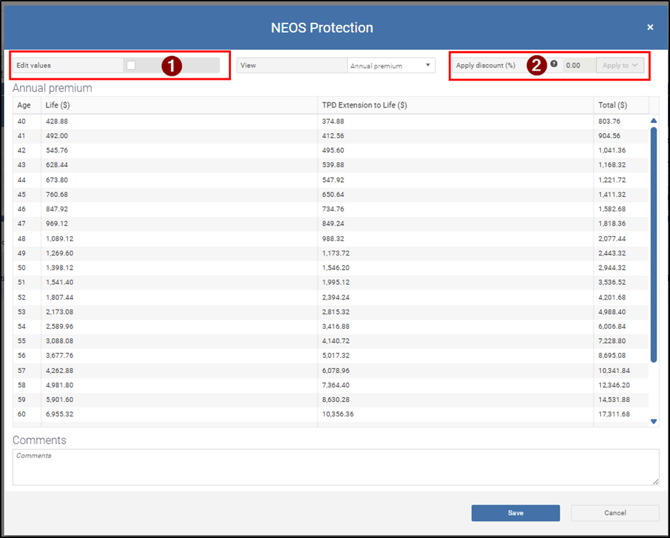
If you select ‘Edit’ to edit premiums, the following dialogue box appears. The ‘Edit values’ checkbox (1) allows you to manually edit premium projections. The ‘Apply discount (%)’ (2) option applies a percentage discount to each year:
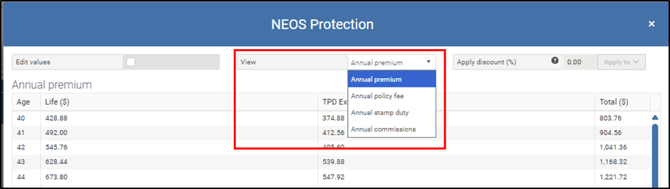
In View, select the fees which you wish to edit in the drop down menu.
Comparison
Charts
This tab includes premium and feature score graphs. AdviceOS has a number of charts available for cumulative premium, premium basis and cumulative premium basis. To view these, use the ‘Map age to’ drop down in the top right- hand corner.
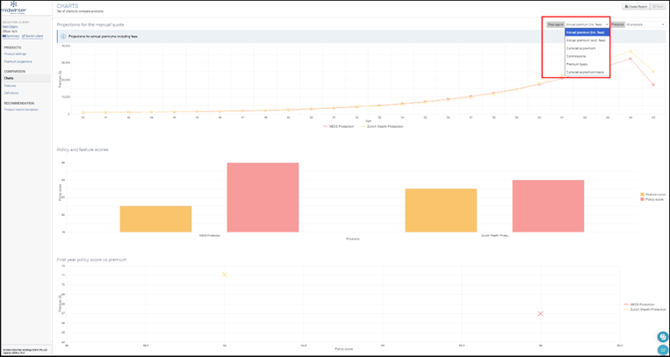
The charts tab allows you to compare policy and feature scores as well as provide details for the first-year policy score verses premiums in three easy to read graphs.
Features
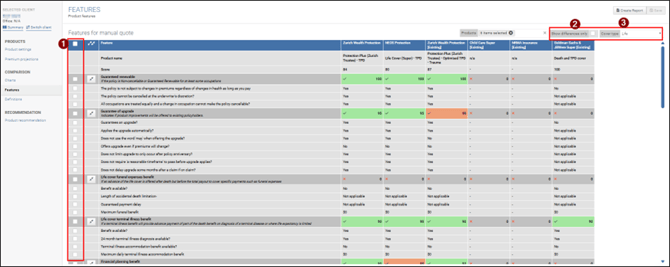
The ‘Features’ tab is where a user can select and compare the features between each policy for reports and the SOA using the checkboxes (1), a user can also select “show differences only” (2) as well as having the ability to select the cover type (3).
Definitions
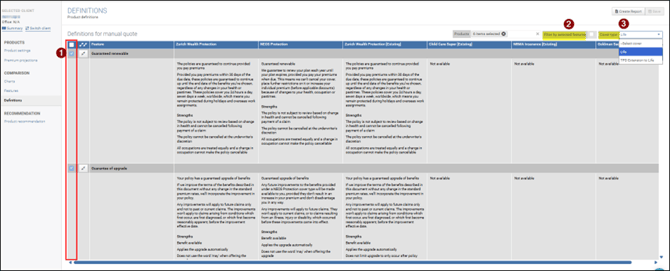
The ‘Definitions’ tab includes a detailed explanation of the features of each insurance. Use the checkboxes to include these definitions in the insurance reports and SOA (1). A user can also filter by features selected in the previous page (2) and view the details by the cover type (3).
Recommendations
Product Recommendations
The ‘Product recommendation’ tab is where a user can select the existing insurance, the recommended insurance, and an alternative insurance (if they prefer).
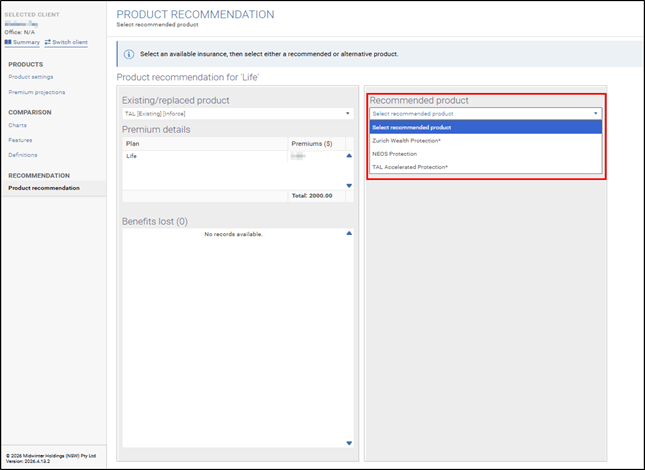
Once the platforms are selected, the page will also display the features gained and lost as well as the difference between the cost.
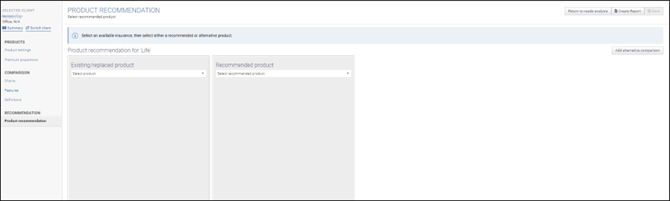
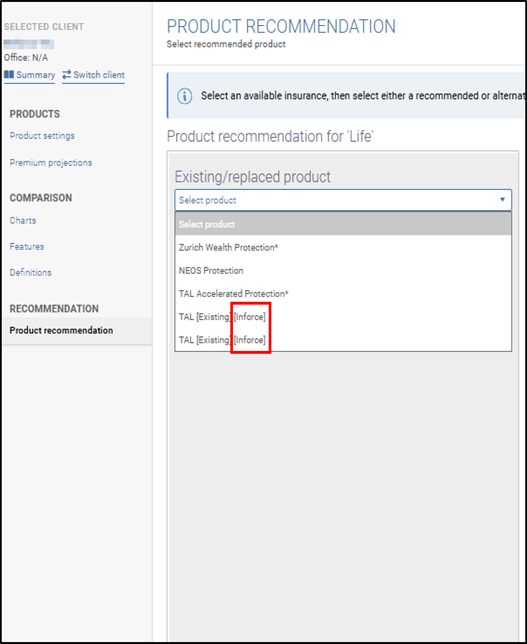
Your first step is to select your existing product. If you have correctly added the product to the Fact Find and the Needs analysis (using the process discussed in the Adding Existing Insurances in the Fact Find and Needs Analysis sections above) your existing policy will appear next to (Inforce].
Then select your recommended policy provider:
To add an alternative for comparison purposes (first ensure it is selected in Product settings tab) then click 'Add alternative comparison' button on the top right.
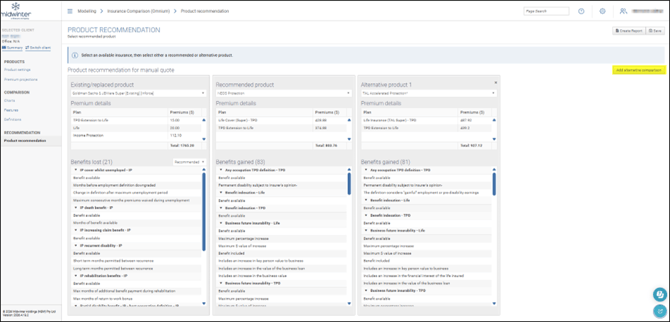
Once the recommended product has been selected, press on Save on top- right and you will receive a message to confirm the update in a pop message.
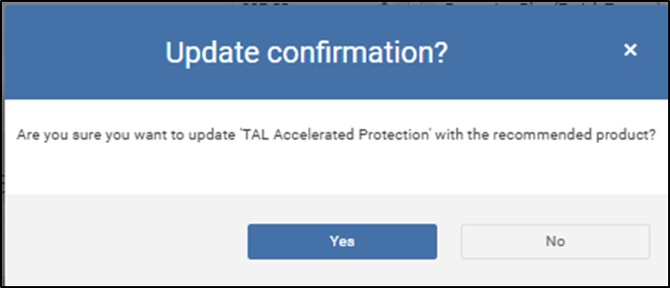
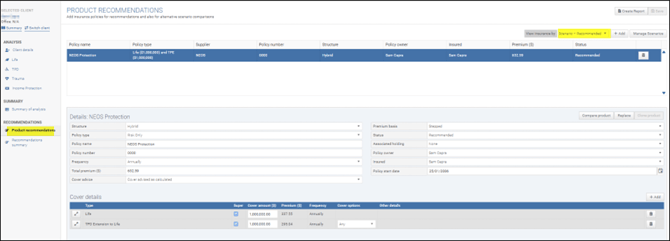
When you click Yes, the information generated from Omnium (definitions, premiums, features and policy comparison) for the recommended product will flow through to the Needs analysis> Product recommendations> Scenario- Recommended section.
This is the section from where the information is extracted by Planbuilder for insurance recommendations in the SOA.
Reporting
Midwinter has two reports available within the Insurance Comparison (Omnium) module to support users in generating detailed comparison outputs. These are:
- Omnium Insurance Comparator Report
- Omnium Insurance comparator (Quick Report)
Users can generate either report at any point while working within the module by selecting the Create Report button, located in the top right-hand corner of the screen.
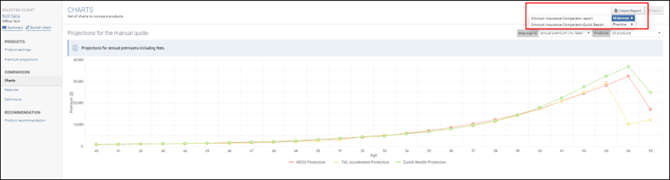
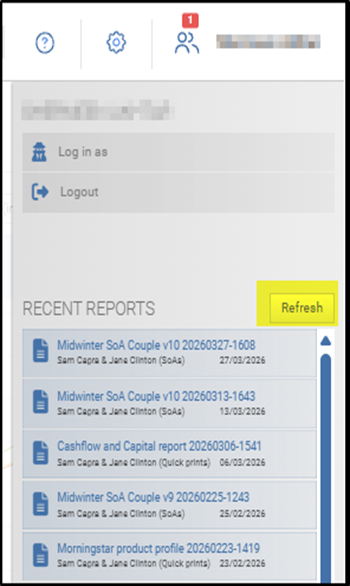
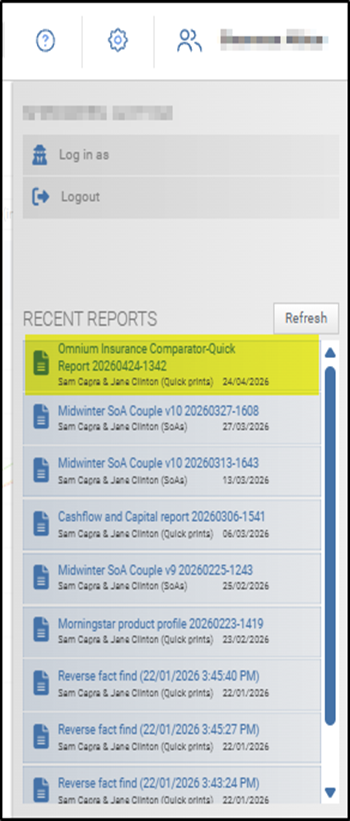
When the button is clicked, the system generates the report and user will be able to download it by clicking on their username, pressing Refresh, and downloading it from the Recent Reports section.

For ease of access, this button is consistently available across all pages within the module, allowing users to create reports without needing to navigate away from their current view.
For any further enquiries on this module:
Email: info@midwinter.com.au