
Introduction
Overview
-
Super
-
Pension
-
Super (Rollover) to Pension
-
Investment
-
Compare existing, recommended and three alternative products
- Create Hypothetical platforms with investment portfolios to provide a faster way to compare platforms before making a recommendation, and populate reports demonstrating like for like research
-
Selecting products to include in comparison will no longer impact the products shown in the Total Portfolio Analysis (TPA)
- Compare SMSF, companies or trust entities (coming soon)
Comparisons
Settings
- Super Products
- Pension Products
- Super (Rollover) to Pension Products
- Investment Products
Note that for a Super to Pension recommendation, the tool assumes that a pension product will be recommended
Fees and Settings / Strategic Asset Allocation
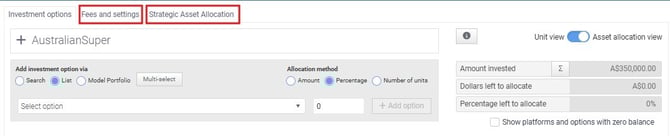
The Fees and Settings page allows users to configure the fee structure and calculation settings for an investment option. This ensures that projections, comparisons, and advice outputs accurately reflect the costs associated with the investment.
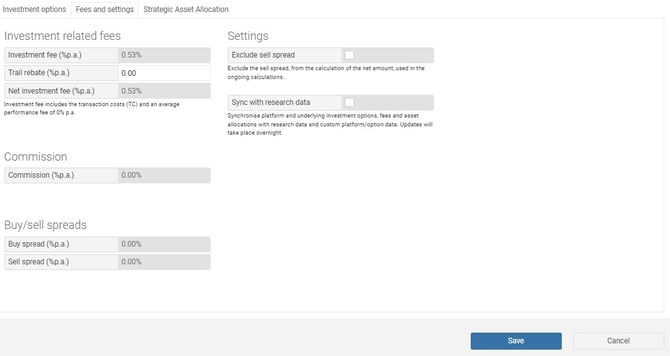
Investment Related Fees
Use this section to define the ongoing costs associated with the investment:
-
Investment Fee (% p.a.) – Enter the annual management fee for the investment.
-
Trail Rebate (% p.a.) – Specify any rebate applied to reduce the overall fee.
-
Net Investment Fee (% p.a.) – Automatically calculated based on the investment fee and any applicable rebate.
Commission
-
Commission (% p.a.) – Record any commission applicable to the investment. This will be factored into overall cost calculations where relevant.
Buy/Sell Spreads
This section captures transaction-related costs:
-
Buy Spread (% p.a.) – The cost applied when entering the investment.
-
Sell Spread (% p.a.) – The cost applied when exiting the investment.
Settings
Configure how fees and data behave within the system:
-
Exclude Sell Spread – Enable this option to exclude the sell spread from net amount calculations used in ongoing projections.
-
Sync with Research Data – When selected, the system will automatically synchronise investment options, fees, and asset allocations with available research data and platform defaults. Updates are applied overnight.
Saving Changes
-
Click Save to apply any updates made on this page.
-
Click Cancel to discard changes.
Strategic Asset Allocation Page – Overview and Purpose
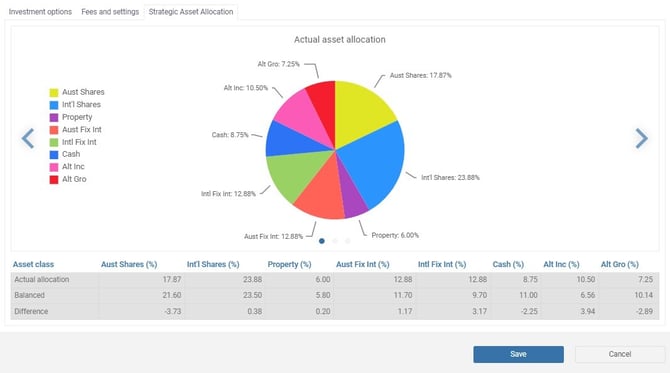
The Strategic Asset Allocation page provides a visual and numerical breakdown of an investment option’s asset allocation. It allows users to compare the actual allocation of assets against a target (balanced) allocation, helping ensure alignment with the selected investment strategy and risk profile.
Actual Asset Allocation (Chart View)
-
The pie chart displays the current (actual) asset allocation across different asset classes.
-
Asset classes typically include:
-
Australian Shares
-
International Shares
-
Property
-
Australian Fixed Interest
-
International Fixed Interest
-
Cash
-
Alternative Income
-
Alternative Growth
-
-
Each segment represents the percentage allocation to that asset class.
-
Use the arrows (if available) to navigate through different views or scenarios.
Asset Allocation Table
The table below the chart provides a detailed comparison across three key rows:
-
Actual Allocation
Displays the current percentage allocation for each asset class.
-
Balanced
Represents the target or benchmark allocation based on the selected strategy or risk profile.
-
Difference
Shows the variance between the actual and target allocations:
-
Positive values indicate the portfolio is overweight in that asset class.
-
Negative values indicate the portfolio is underweight.
-
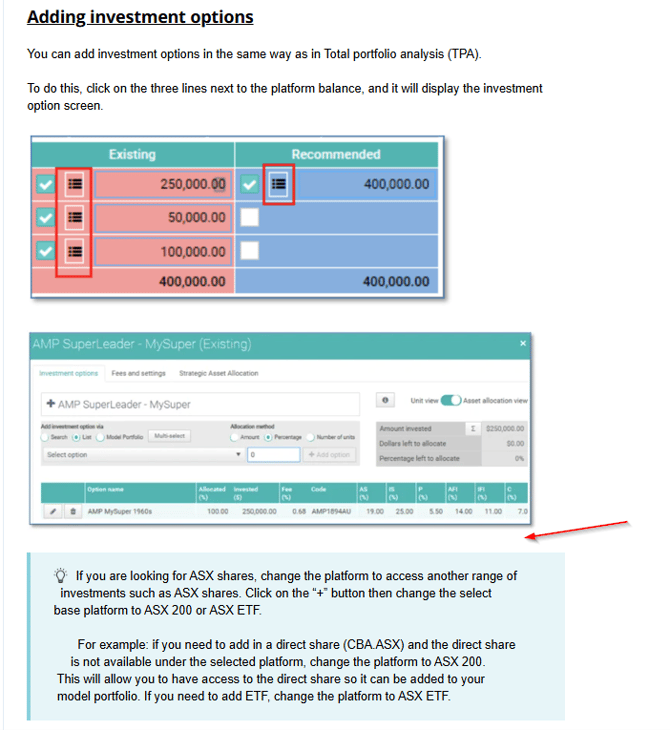
Adding alternative scenarios
You can store and analyse up to three different alternative scenarios. To do this, click on the Alternatives button and select how many scenarios users would like to analyse.
-
The green columns represent the alternative scenarios.
Syncing Allocations
If you are recommending multiple platforms, you can also use the sync button to allocate the platform balances to the required recommended platforms.
There are a few actions that can be used to allocate balances across a recommended platform:
- Split based on scenario platform ratios
- Split evenly across platforms
- Split manually
This screenshot shows how you can allocate the invested balance on a percentage basis across the platforms.

INPUTS
Comparison Details Page
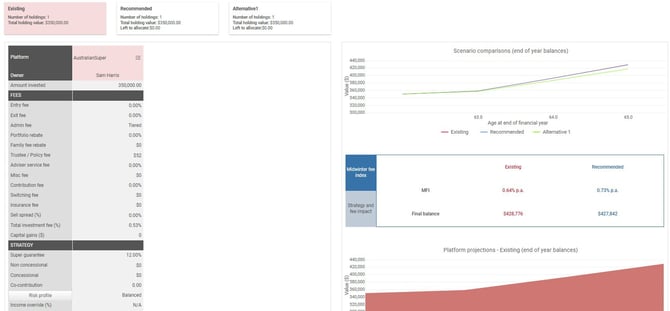
The Comparison Details page includes the following components:
- A listing of all of the existing, recommended and alternative platforms
- Functionality displaying all investments along with the ability to edit all options (access to portfolio builder) by clicking on the three dots icon next to the platform
- The Functionality menu (three dots) is not displayed by default. To reveal this option, first click the three horizontal lines located at the top of the screen. Once selected, the Functionality menu (three dots) will become visible
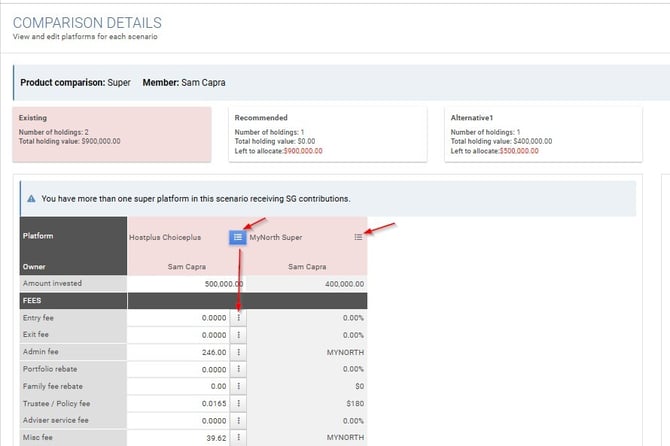
- Functionality to edit income and growth through risk profile button on each existing, recommended, and alternative products
Overriding income/growth returns can be useful to use for example if your existing platform is cash investment
- Existing vs recommended projections, based on fees, strategy and risk profile
- MFI (Midwinter Fee Index) or average fee, which provides an indicative comparison fee regardless of the fee structures used by the platform
- A platform by platform investment value projection
- Functionality to display the projections in the present or future value
- A table showing a breakdown of the year on year projections
- Ability to change the projection end date
Click on “projection calculation” if you want to view more detailed calculation fees, taxes, balances, etc.
Editing platform and projection fees
You can edit platform fees by double-clicking next to one of the fees dialogue boxes for the platform you wish to edit. The field will change from grey to white for editing.
Best Interest
- The same starting balance
- Transaction fees from disposing of all existing platforms
- How fees act with the change in portfolio value over time
- Cost of acquiring the compared platform
- Balance projection based on the same risk profile and contribution strategy inputs (determined by the select platform for strategy & risk profile drop down field).
- Features that are important to the client and their needs
- Projected balance at the end of the period
Note that the Best Interest section of PC provides a like for like comparison for each platform. This means that products can only be compared to other products on the same platform (ie super to super, pension to pension, investment to investment). This section cannot compare a super to pension, or pension to investment.

- Tolerance refers to the allowable variation between growth and defensive asset allocations.
- It determines how much deviation is permitted from the prescribed growth/defensive split defined by the selected risk profile’s Strategic Asset Allocation (SAA).
- This setting ensures that any allocation remains within an acceptable range while still aligning with the intended risk profile.
Users should ensure the tolerance level is set appropriately to maintain consistency with the client’s investment strategy.
Overview
Portfolio Details
Summary and Reporting
What the Report Includes
-
Overview of Superannuation & Rollover
Explains the purpose of superannuation and key considerations when switching funds.
-
Data & Assumptions
Outlines inputs such as fees, contributions, risk profile, and retirement age.
-
Platform Comparison (Fiduciary Matrix)
Side-by-side comparison of super funds, including fees, features, and projected balances.
-
Retirement Projections
Shows estimated outcomes at retirement under each scenario and the impact of fees and strategy.
-
Midwinter Fee Index (MFI)
Standardised measure to compare average annual fees across platforms.
-
Recommendations
Provides the advised strategy, such as consolidating funds or redirecting contributions.
-
Implementation Details
Includes buy/sell instructions and a Product Replacement Statement (PRS) outlining first-year costs.
-
Fees & Features Summary
Breaks down platform fees and highlights any differences in features.
-
Strategic Asset Allocation (SAA)
Compares actual vs target asset allocation based on the client’s risk profile.
Buy and sell instructions
Fees and Features
Product Replacement Statement
PDS Fees
Features
- Manual selection by clicking on each specific feature(s)
- Turn on all features
- Use preset feature list
-
-
- For preset feature list, this will need to be setup beforehand under portfolio book / configuration / preset features
-
Research and Analysis
Please note that only investment products that thas APIR code will be available
What is Included
-
Fund Overview
Key details such as fund name, country, fund type, legal structure, and status.
-
Manager Information
Information about the fund manager, custodian, and contact details.
-
Strategy & Objectives
Summary of the fund’s investment approach, objectives, and underlying strategy.
-
Fees
Annual fees including the Indirect Cost Ratio (ICR) and any performance fees.
-
Investment Details
Technical data such as ticker, APIR code, net assets, unit pricing, and PDS date.
-
Fund Administration
Minimum investment amounts, withdrawal rules, and additional features (e.g. savings plans).
-
Performance Data
Historical returns across multiple timeframes (e.g. 1 month, 1 year, 10 years), including comparisons to benchmarks and categories.
-
Performance Chart
Visual representation of fund performance versus benchmark over time.
-
Asset Allocation
Pie chart showing how the fund is allocated across asset classes.