Introduction
Navigation
Pencil (edit) icon
1. General Settings
-
- You can update the name and balance of the account.
- You can also determine the expected return of the account. By default it will select the Risk Profile relevant to your client, however this can be changed to another risk profile or portfolio return or you can select override which will give you the ability to determine a growth and income return rate.
-
- You can set any annual fees charged on the account as either a $ or % amount
- The assumed super guarantee rate for your client
- When ticked, use maximum super contribution base is used to cap employer SG to the max cap rate as per legislation. Unticking this will allow amounts of SG higher than this cap
- When ticked, use cap on regular CC contributions will prevent you from contributing more than the allowed regular concessional amount, while unticking this will allow the modelling to add amounts higher.
- When ticked, use cap on super guarantee will prevent SG amounts from going above the concessional rate, unticking will allow it to go above the concessional rate.
Note that use maximum super contribution base and use cap on super guarantee can have an impact on one another depending on whether they are ticked or unticked.
-
- When ticked, SG salary will set the SG amounts based on your clients salary. If you untick this, it will appear as manual. You can then navigate to the specific super account > transactions and there will be a specific transaction that allows you to manually set SG rates per year, with an indexation and start/end year.
-
- Use cap on regular NCC contributions is similar to the CC setting, which will cap your NCC amounts per year as per legilsation if ticked.
- If ticked, include untaxed calculations will create additional fields that will allow you to set untaxed amounts, tax on withdrawals and potential tax on rollovers
2. Defined Benefits
This section of Edit Super will allow you to incorporate a defined benefit into super modelling.This will be useful if you wish to roll a lump sum amount from a defined benefit into your super account at a certain point.
Note that if you wish to model a fixed defined benefit pension, please navigate to the user guide found within Income and Expenses. This section should only be used for lump sum balances into super.
3. Super info
4. Additional settings
-
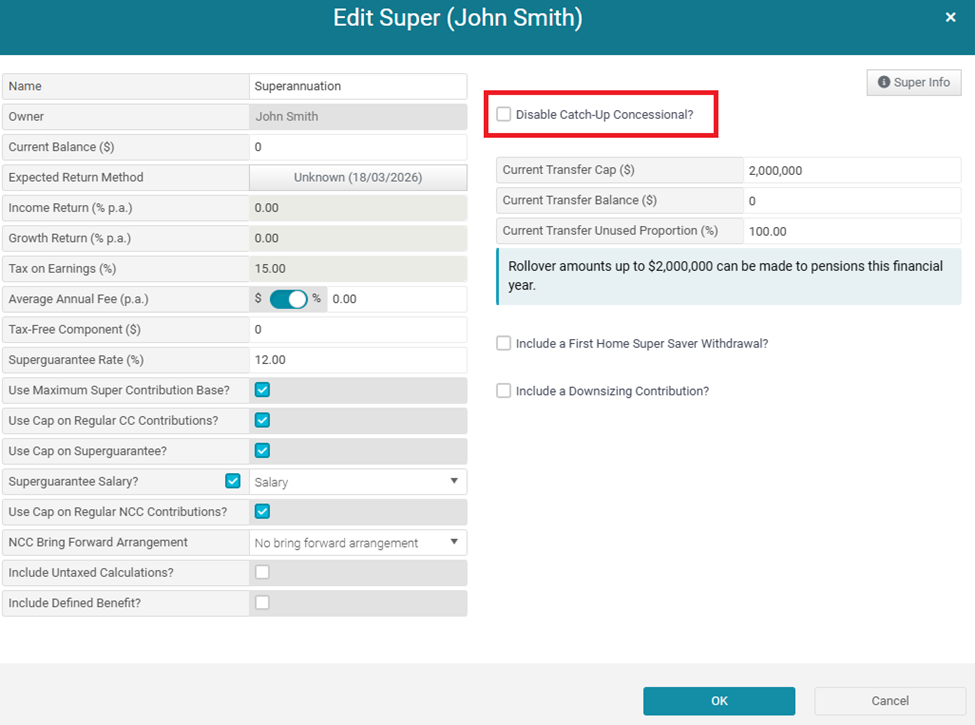
- You can select to ignore catchup concessional limits by ticking this field, unticking will include the available catch up amounts in the modelling
- Set up concessional contribution splitting or superannuation guarantee splitting recommendations.
Note that the values you set for splitting will be directed into the partners account (ie be deducted from the account you are working on). You will need to change super accounts if you want the splitting to be received by the account you are working on.
-
- You can determine the current transfer balance cap, balance and used amount, which will impact the amount that can be rolled into a super account
- Incorporate advice for a First Home Super Saver withdrawal at a specific date and amount
- Include a downsizer contribution as part of the advice.
The downsizer contribution will not impact non-concessional caps and will be added to the account as an additional NCC. It is important to understand that the funds for a downsizer contribution are taken from the cash account, meaning you will need to ensure an influx of funds are added to the cash account to account for this.
Transfer Balance Cap
Overview
The Transfer Balance Cap is used to determine how much can be transferred into retirement phase income streams. Within the modelling environment, this is split into two components:
- General Transfer Balance Cap – This is a legislated amount that applies to all individuals. It is indexed over time and cannot be changed by the user.
- Personal Transfer Balance Cap – This is user-defined and can be adjusted manually to reflect individual circumstances.
How It Works in Modelling
When a new client is created, the system will determine the personal transfer cap using the following logic:
- If data has been entered into the Contributions Worksheet, the value entered there will be used.
- If no data was entered into the worksheet, the system will default to the current financial year’s legislated cap.
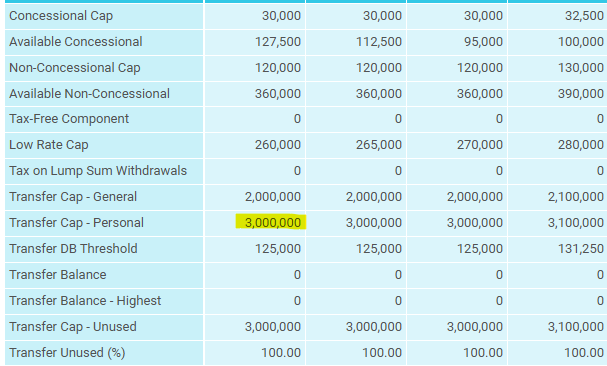
Example: if you enter $3 million as the personal transfer cap in the Contributions Worksheet, this value will be used when launching Cashflow and Capital for the first time.
This approach gives advisers full control over the personal transfer cap, allowing them to reflect real-world scenarios such as partial usage or carry-forward amounts.
Indexation and Future Years
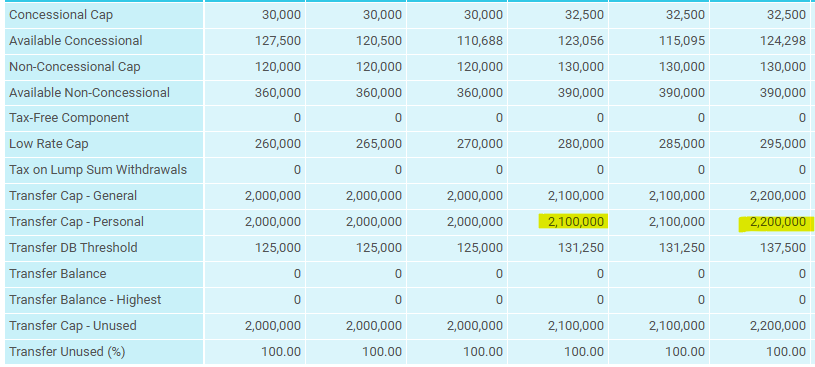
As the general transfer cap increases over time due to indexation, the personal transfer cap will also increase. This ensures consistency with legislative changes while preserving user-defined values.
Modelling Past Financial Years
If you are modelling from a previous financial year, you will need to manually update the personal transfer cap to reflect the correct historical value.
Example: If projecting from the 2024/2025 financial year and the applicable cap was $1.9 million, you must enter this value manually in the Super Details dialog. This ensures the projection results align with the correct assumptions.
The personal transfer cap may represent the remaining cap after partial usage. For this reason the system does not automatically adjust it to match the current legislated value.
Similarly, if the user enters a value above the legislated cap, the system assumes this is intentional and respects it. This was designed to empower advisers, allowing them to model scenarios accurately and flexibly.
Summary
- The general cap is fixed and indexed by legislation.
- The personal cap is user-controlled and reflects either the worksheet value or the current year’s default.
- Users must manually adjust the personal cap when modelling past years.
- The system always respects the user-defined personal cap, regardless of whether it is above or below the legislated amount.
Transactions
- Select transaction allows you to determine which type of transaction you wish to create
- Here is a number of assumptions for the transaction. Filling the value ($) will automatically set this amount for every subsequent year as determined by the start and end date
- Often you will find important information describing the transaction type, make sure to keep an eye out for this information.
- You can choose to set values for specific years, or select show months to choose a specific month for a transaction. If you select year, it will automatically distribute the value evenly over 12 monthly amounts.
1. Concessional Contributions
- Regular concessional contribution - any amounts here will come from cashflow (ie your clients income).
- Concessional (bank account) - any amounts here will come from the default cash account within the modelling, having a direct impact on the balance of this account.
- While not technically a concessional contribution, the SG salary field is available if you selected 'manual' within the edit section (see general settings above). This allows you to manually set any SG rates for your client.
Note due to the tax nature of concessional contributions, you cannot use these transactions to make withdrawals
2. Non-Concessional Contributions & Withdrawals
- Regular non-concessional contribution - similar to CCs, amounts here will come from the clients cashflow (ie income) and because of this can only be positive amounts
- Non-concessional/withdrawal (bank account) - this field allows you to either add or remove funds from the super balance using either positive (contribution) or negative (withdrawal) values. The funds for these transactions will either come from, or be direct to, the default cash account. This means they will directly impact the balance of this account.
Note you can make both $ and % based withdrawals from the account, however % based withdrawals must be done on a specific month and cannot be set annually. This is due to the annual amounts being averaged over the 12 monthly periods. For example, a -60% value will indicate that 60% of the balance will be withdrawn from the account that month.
3. Spouse Contribution
4. Fees / Premiums / Deductions
- Insurance premiums - Amounts will be taken from the super balance, set at a $ amount and only positive values
- Deductible costs & Book deductions - Amounts will be taken from the super balance. For monthly transactions, these can be both $ and % based.
Carry Forward Contributions
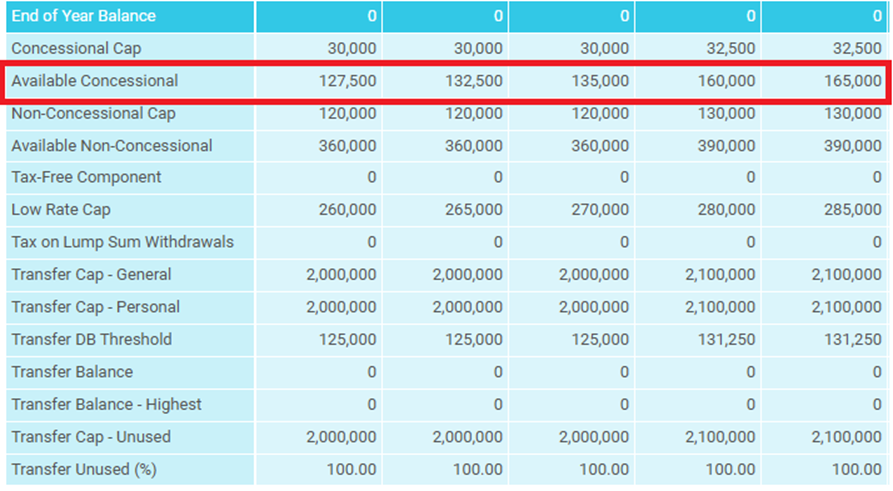
The Concessional Contribution carry‑forward provisions allow individuals to use any unused concessional cap amounts from previous financial years in the current year.
If entered correctly, the system will automatically factor in concessional contributions used each year starting from the 2019 financial year (or 5 years ago – whichever is greater).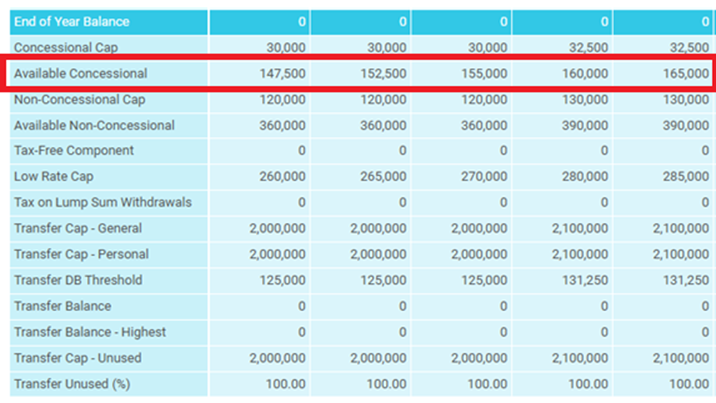
Entering Previous Years’ Contributions
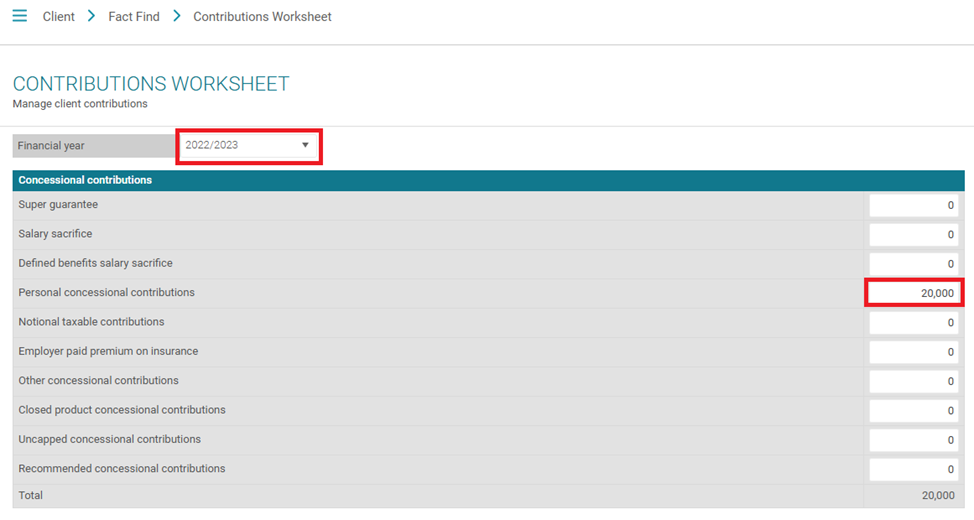
For the system to correctly calculate any available carry‑forward amounts, you must enter the client’s historical contributions into the Contributions Worksheet.
Follow these steps:
- Navigate to Client > Fact Find > Contributions Worksheet
- At the top of the page, open the Financial Year dropdown
- Select a previous financial year
- Enter the relevant contributions made in that year into the worksheet
Repeat for each applicable year.
Once completed, your modelling will automatically update to reflect any available carry‑forward concessional contributions based on the client’s history.
Ignoring Carry‑Forward Amounts (Optional)
If you need the system to always apply only the standard concessional cap for each year (i.e., ignore any increased limit via carry‑forward):
- Open the client’s superannuation account by clicking the pencil icon
- Tick Disable catch‑up concessional.
The contribution limit will then always reflect the prevailing annual cap, regardless of unused amounts from prior years.